18. Takeoff Options
This dropdown (below) on any Fly Screen lets you choose how your airplane takes off. Being towed aloft is another launch method. It is discussed in the aerotowing chapters, e.g., single pilot aerotowing
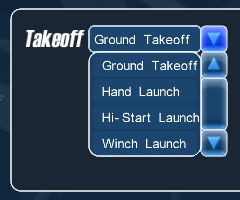
18.1. Ground Takeoff
With Ground Takeoff selected, the aircraft starts out being placed on the ground.
This selection is mainly used for power planes.
To start rolling, increase throttle.
You can also add wind to cause airplanes to “lift” off (hold down the
Homekey) on their own.
It would simulate having your airplane being blown away by the wind.
18.2. Hand Launch
With Hand Launch, you throw the airplane like a javelin.
To change the launch direction (azimuth) and nose up/down angle (elevation), move the mouse.
To launch, press the
Spacebar.To tune the throw without leaving the flight, press
Left Shift+K(or Simulation | Hand Launch Settings on the menu bar). A pop-out window has the Power Tools throw settings, from arm cocking and the throw itself to the launch height, the bank angle at release, the launch direction, and the timed elevator preset. Drag, nudge with the arrows, orCtrl+ click to type. The next launch uses the new values. They last for the run, and Power Tools is never changed. Works for hand launch, hi-start, and winch flights. The window is described in Widgets and Tools.
18.3. Hi-Start Launch
A Hi-Start Launch is a ground-staked bungee (rubber line with string) that pulls the airplane aloft after being stretched out and released (more or less like a kite launch).
In SeligSIM, the line is stretched out by an amount you pre-set. Choose a hi-start line that is properly sized for your airplane.
To change the launch direction (azimuth angle) and angle (elevation angle), move the mouse around when you start a Flight Session.
To stretch the line more, hold the
`key (backquote, top left of the keyboard), and the anchor walks out.Left Shift+`eases it back in.To launch, press the
Spacebar. A pull-force bar shows the line load, green through the comfortable range and red past the maximum you set.After launching, the hi-start line will release freely when it “flies over” the line, unless in Options | Towlines (here) you have unchecked the box for Open towhook (launch line is free to disconnect).
18.4. Winch Launch
Winch Launch is via a cable connected to a motorized winch that you control.
To change the launch direction (azimuth) and angle (elevation), move the mouse.
Press (pulse or hold down) the
`key to run the winch and increase the line tension.To launch, press the
Spacebarwhen there is enough tension to pull the aircraft aloft. Your line tension on the aircraft is displayed on-screen as a pull-force bar, green through the comfortable range and red past the maximum you set.The winch line will release freely when the airplane “flies over” the line, unless in Options | Towlines (here) you are not using the option: Open towhook (launch line is free to disconnect).
Alternatively, you can manually release any time by pressing the
Qkey. For more, see next.
18.5. Captive Towhook Release
In Options | Towlines, if you have unchecked
the box for
Open towhook (launch line is free to disconnect),
then the towline is captive (attached) until you disconnect
it manually. Press the Q key to disconnect the line at any time. For
aerotowing, the towline is always captive and Q must be used
to release the towline. When the towed airplane is Pilot 2, use
Right Shift + Q .
Information
If a Mouseable Chase View is being used (e.g., F7 camera views) for
hand launch, the mouse will point both the airplane and the
camera view direction. The situation will be confusing at first.
Use the basic F1 view to regain proper orientation and thereby
only mouse-point the airplane.
Troubleshooting: Towline Falls Off Before Launch
If the line is not captive and it falls off before launch (due to rope whip dynamics, slack, low initial tensioning, or line positioning/length or “all of the above”), then either increase the line tension in Options | Towlines or else use a captive towhook.
To gain more perspective of how the line is initially interacting
with the airplane (before moving the mouse to point), use the
F1 view and the arrow keys to move around. Or use the F5 views to smoothly drift toward the airplane
before launch.