13. Sun/Sky Selection
This window lets you select a panoramic photo-realistic skyscape to use with 3D flying sites. There are around 40 sky panos in total. These skyscapes in SeligSIM cover the range from bright sunny days to cloudy, and many in between. These sky panos were produced by stitching together actual sky pano photography.
To reach this window from a Fly Screen,
click at right on the picture of a sky or at left click on Sun/Sky in the menu,
or press S and type a few letters of the sky’s name to search.

At right, scroll through the list of skies.
When you find a sky that you like, click on it. This shows you a larger picture at left, and a description below that.
To fly under this sky, at bottom left click Ok.
To revert to the sky you had before, at top right click on Return to Main Menu.
The All Skies dropdown at top right shows the various categories of skies, such as sun stars, sunsets, cirrus, cumulus, high sun elevation, etc. Recent leads the list, in amber. It holds the skies you actually flew under.
Press F for a quick search of the list. Type a few letters of
the sky’s name and the list narrows as you type. From a
Fly Screen, S opens the same search without visiting this
window.

13.1. Moving the Sun While Flying
In SeligSIM 2026 you can move the sun during a Flight
Session. Left Shift + Home / End raises and lowers it,
and Left Shift + - / = moves it around the sky. (The
same keys without Left Shift are the wind controls.) Practice
landings into low sun glare. While you move it, a sun ray rises from
your airplane’s start position and holds for five seconds after your
last key press. World | Reset Sun on the menu bar
puts it back to the flying site’s startup state. The sun painted into
a pano sky stays put, but the lighting and the lens flare move.
On 3D flying sites you can also turn the whole sky. World | Sky Rotation is a slider from -180 to +180 deg, seeded from the Power Tools sky azimuth offset, and the sun and lighting turn with the sky so the painted sun and the real one stay together. Reset Sky puts it back, and Reset Sun still returns the sun to where the rotated sky puts it.
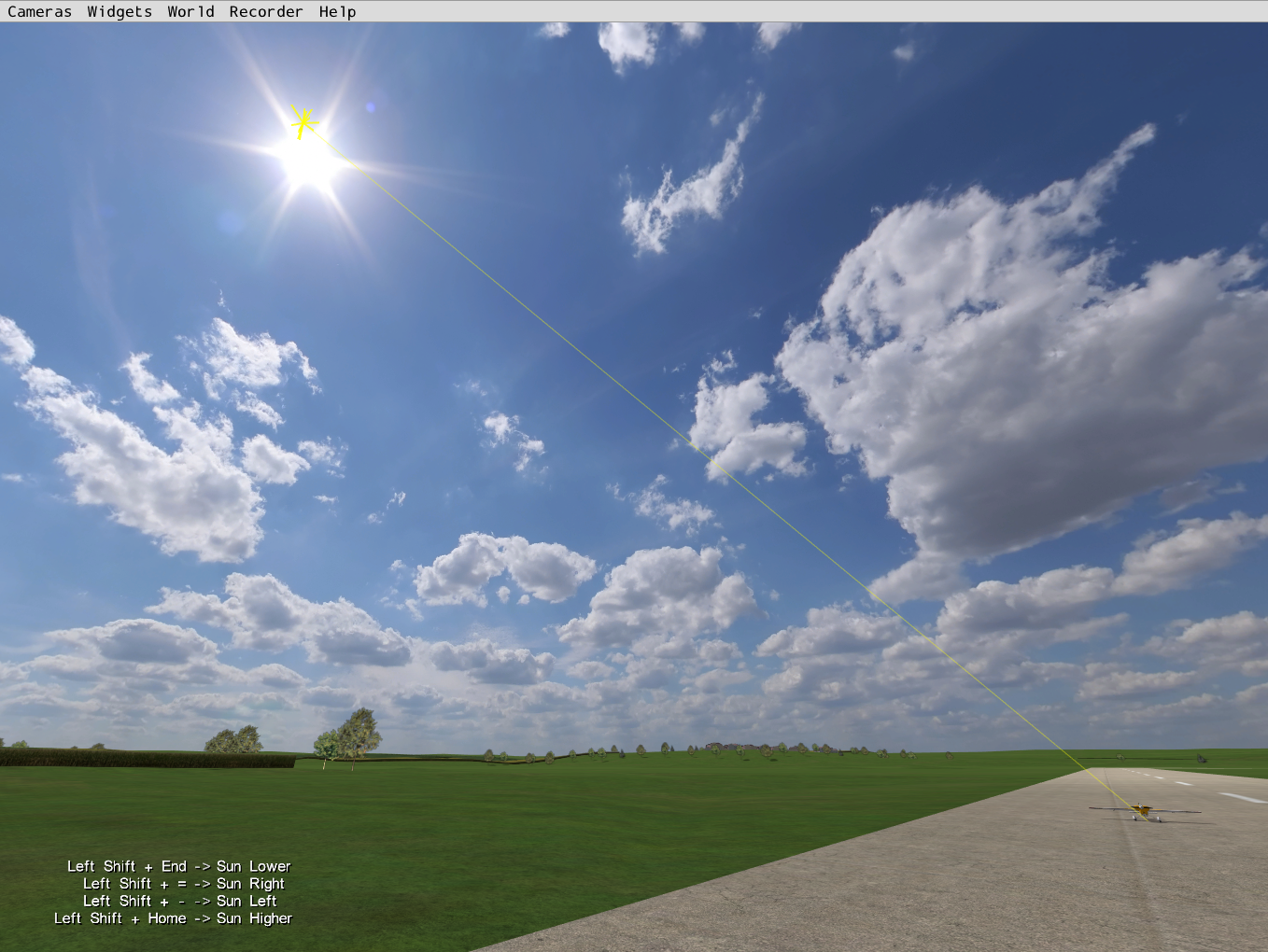
Moving the sun. The ray runs from the airplane’s start position to the new sun position. Screencast Keys at lower left shows the four sun keys that were pressed.
Information: Skies for Panos
You can change the sky of 3D flying sites. For pano flying sites, however, you cannot change the sun/sky because the pano imagery naturally already includes the skyscape as part of the original photography.