8. In-Flight Menu Bar
SeligSIM 2026 adds a desktop-style menu bar at the top of the screen during a Flight Session. Its menus are Simulation, Aircraft, Transmitter, Cameras, Widgets, World, Physics, Recorder, and Help. In a two pilot session a Pilot 2 menu is added.
Nearly every keyboard command in the sim is in the menu bar, and each item shows its key. So the menu bar doubles as a live key reference: if you cannot remember the key, open the menu and read it there. You can also just click the item.
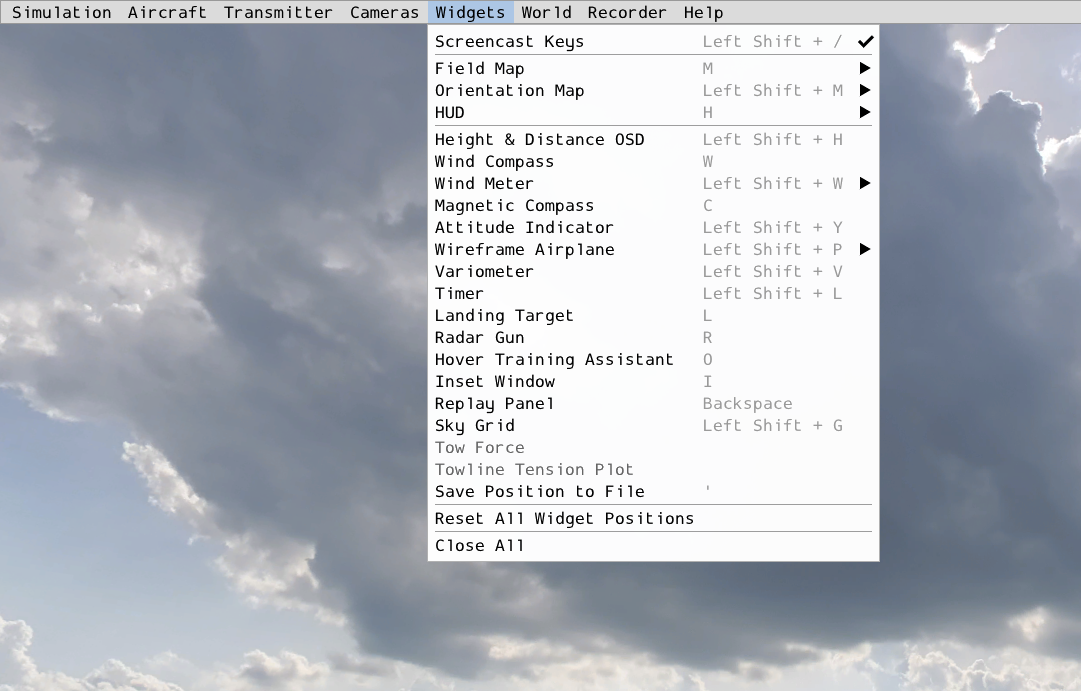
The menu bar with the Widgets menu open. Each item shows its key, and checkmarks show what is on.
Some things worth knowing:
Menus with checkmarks stay open after a click, so you can flip several widgets in one visit while the sim runs behind the menu.
Items marked “(hold)” keep acting while you hold the mouse button, the same as holding the key. These are zoom, wind speed and direction, sun position, fine trims, and the winch reel.
Sliders in the menus (Wind Vectors, Sky Rotation, and others) have left and right arrow buttons that step one unit per click and repeat while held.
Items ending in “…” open a settings window that stays live while you fly. Every one has the same four buttons, Power Tools values, Defaults (or All Off), Save Settings, and Reload Saved Settings. Saved settings go to the window’s own file in the Options folder, and Power Tools itself is never changed by any of them.
Transmitter | Open Tx Basics and Open Tx Full lay out a whole set of transmitter panels with one click. Close All (on the Widgets and Transmitter menus) clears the screen.
Press and release
Alton any menu screen (not in flight) and small labels appear beside everything reachable from the keyboard, the way Windows does.
8.1. The Menus
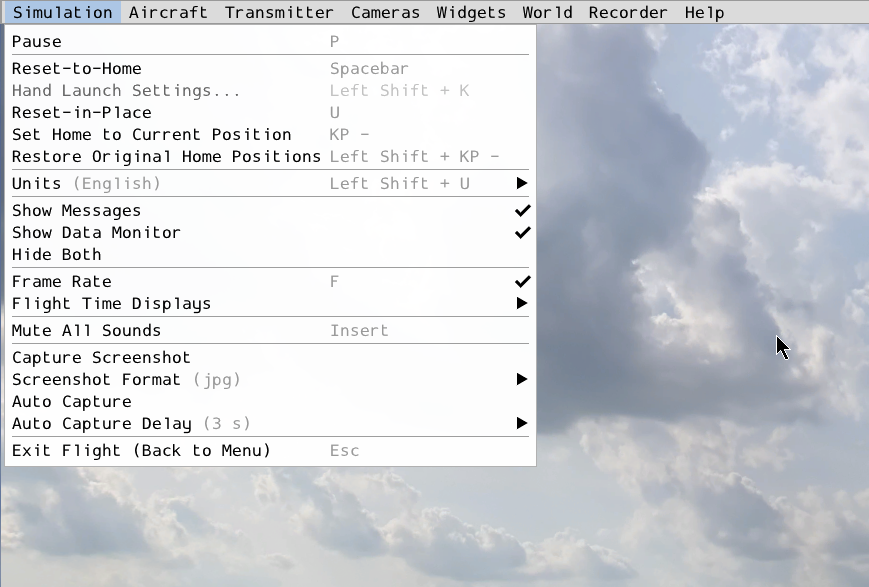
The Simulation menu.
- Simulation
Pause, hand launch, and the resets (
Spacebar,U) come first. Next are set home to the current position (KP -) and restore the original homes (Left Shift+KP -), then Hand Launch Settings (Left Shift+K), described in Takeoff Options, and Units English or Metric (Left Shift+U, for the session only). Below those are the messages, Data Monitor, and frame rate displays, the flight time displays, Data Monitor Settings… (which of the 80 readouts show, with its switch and text size), Mute All Sounds (Insert), and Capture Screenshot with its format, plus an automatic capture a set delay after each flight starts. Exit Flight (Esc) is last.- Aircraft
Airplane Specifications (
Left Shift+KP /) is first. Then come start and kill the engine (J,K), release the towline (Q), and the winch reel and hi-start walk-out and walk-back (hold). Smoke, the variometer and its sound, and indestructible aircraft and propeller follow. Fine Trims are on the keypad (KP 4/KP 6yaw,KP 8/KP 5pitch,KP 7/KP 9roll). Rewind (hold) is on the menu only.- Transmitter
This menu holds the transmitter panels. They are Flight Manual (
Left Shift+I), Flight Modes & Rates/Expos (Left Shift+E), Flight Modes & Mixes (Left Shift+F), Flight Modes & Channels (Left Shift+C), Flight Modes & Offsets (Left Shift+T), Servos (Left Shift+S), Deflections (Left Shift+D), Axes (Left Shift+A), Mix Map (Left Shift+Z), Mix Bench (Left Shift+X), and the Transmitter Display (E). Plus Open Tx Basics, Open Tx Full, and Close All. Each panel is described in Widgets and Tools.
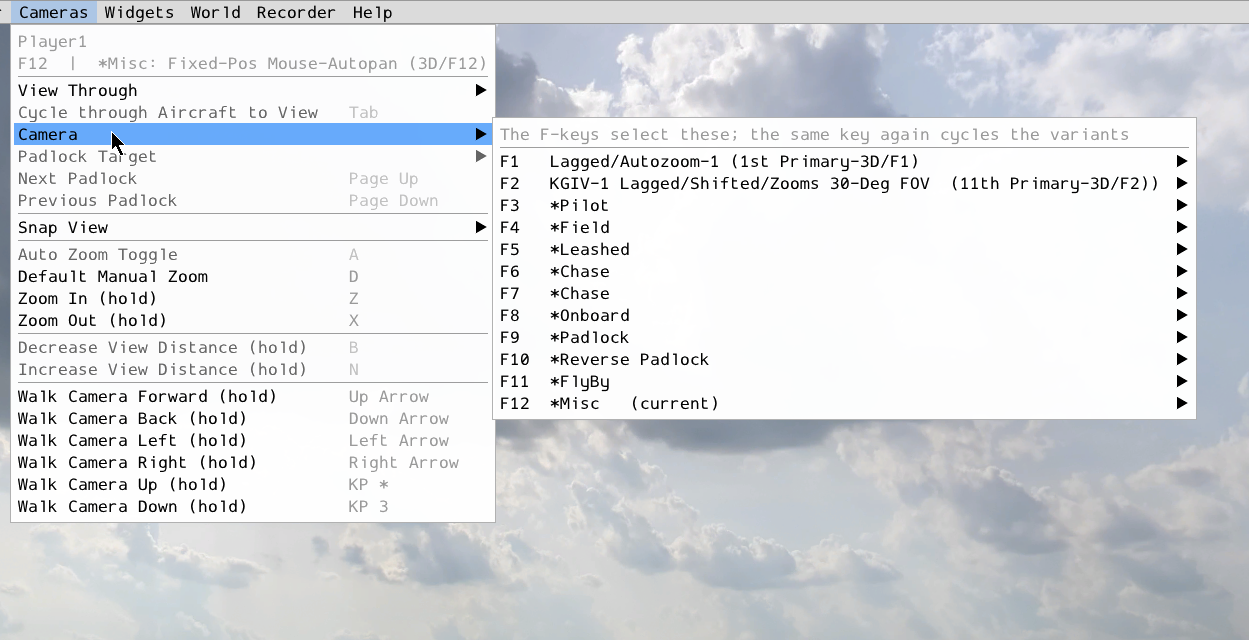
The Cameras menu with its Camera submenu open. The F keys
select these, and the same key again cycles the variants.
- Cameras
Tabcycles which aircraft you are viewing. The camera group (F1throughF12) is listed with the live camera names, then the padlock target (Page Up/Page Down) and the Snap Views (holdVpilot,Ghorizon,Ywindsock,Tlanding target). Below those are auto zoom (A), default zoom (D), zoom in and out (Z,X), view distance (B,N), and walking the camera on 3D sites (arrow keys,KP *,KP 3). See Camera Views.- Widgets
Every on-screen widget and instrument, in the order of the Widgets and Tools chapter, plus Reset Panel Positions, Reset All Widget Positions, and Close All. Several are submenus with their live settings. HUD has the two Home Arrow switches, Orientation Map has a Settings… window (frame, contents, and sizes), Wind Meter has its marker, history, average, and scale rows, Wind Vectors (after Wind Meter) shows the grid of red wind arrows with its size, spacing, and arrow-scale sliders, and Attitude Indicator has Show and Flight Path Marker. Widget Sizes… opens a window with one size slider per widget, the HUD, and the Data Monitor text. Instruments resize as you drag, panels and maps at the next flight, and the window says which is which.
- World
Wind speed and direction (
Home/End,-/=) and Reset Wind come first. The sun is next (Left Shift+Home/Endraises and lowers it,Left Shift+-/=moves it around) with Reset Sun. On 3D sites a Sky Rotation slider turns the sky dome, and the sun and lighting turn with it, and Reset Sky puts it back. Shadows is a submenu with the airplane’s shadow method (Sharp Edges, Soft Edges, Projected on Terrain), the projected softness and texture size, and soft edges for pilot 2 and recordings, all live. Windsock is a submenu with Show, On Field Map, and Direction Cone on Field Map. Then the thermals on the field maps, on the Orientation Map, and as Thermals in 3D, which draws each thermal as a translucent column shaped by its usable lift.- Physics
Markers… opens a window of switches for what the simulation computes about the airplane, the CG, the datum, the contact points and the forces on them, the control-surface hinge pivots, and the thrust vector, drawn live while you fly, with sliders for the point radius and the force scale. Developer Overlays… switches the on-screen developer data the same way. Disable Gravity, in its own group, floats the airplane on the next physics step with the atmosphere still there.
- Recorder
The Replay Panel (
Backspace), the flight recorder (Enterstarts it and stops to save), and TxOverdrive recording and playback. See Transmitter Overdrive. The Flight Path Trace rows are here too. Generate turns the trace on, starting fresh from the airplane’s position, and Save (Right Alt) and Load (Right Ctrl) keep it.- Pilot 2
In a two pilot session, the pilot 2 forms of the aircraft items, with
Right Shiftas the modifier (e.g.,Right Shift+Spacebarresets pilot 2).
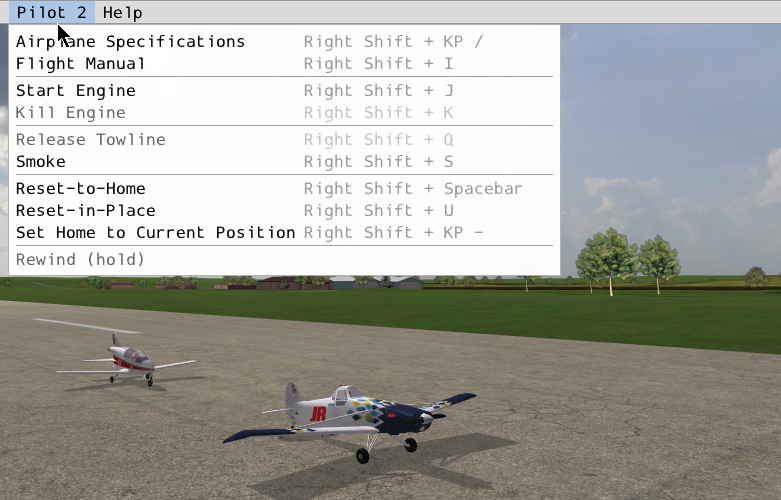
The Pilot 2 menu, with the Right Shift key combinations.
- Help
Keyboard Shortcuts (
/), the SeligSIM website, this User Manual, and support.
8.2. Keyboard Shortcuts Window
Press / (think “?”, since they share a key) or pick
Help | Keyboard Shortcuts to open the Keyboard
Shortcuts window. It is built from the sim’s own key bindings every
time it opens, so it is always current, including any keys you re-bind
yourself. The list is grouped by the headings used in the
Key Commands chapter.
Type to filter it: “wind” shows every wind key, “shift” every chord
with a shift key. Press / or Esc to close it. If you cannot
read while flying, press P to pause first.
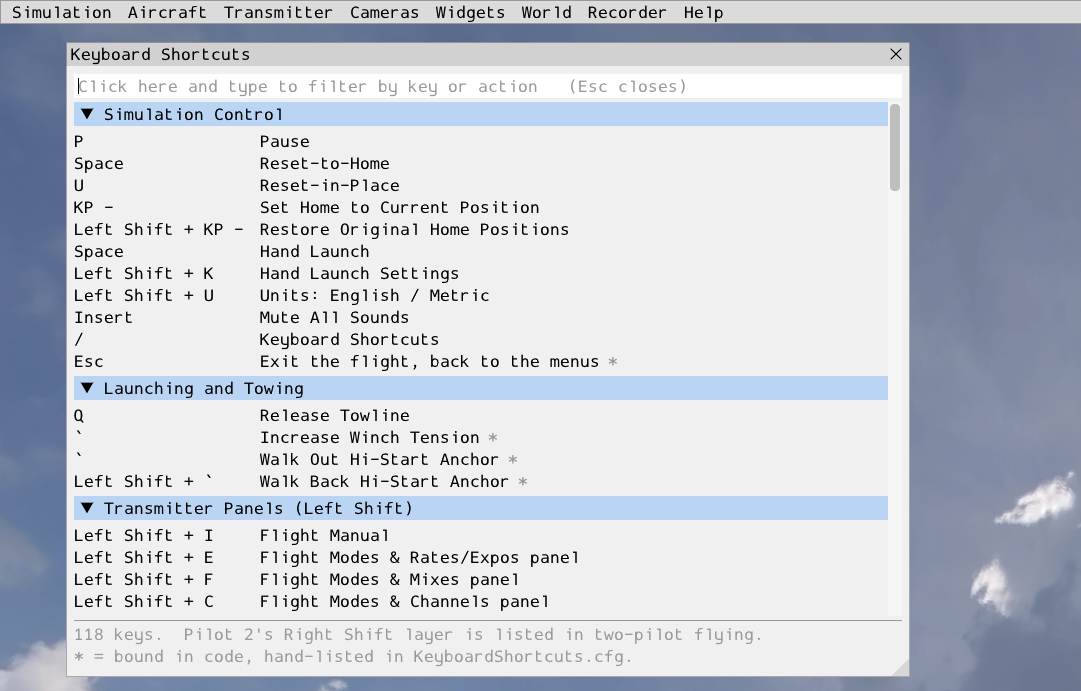
The Keyboard Shortcuts window ( / ).
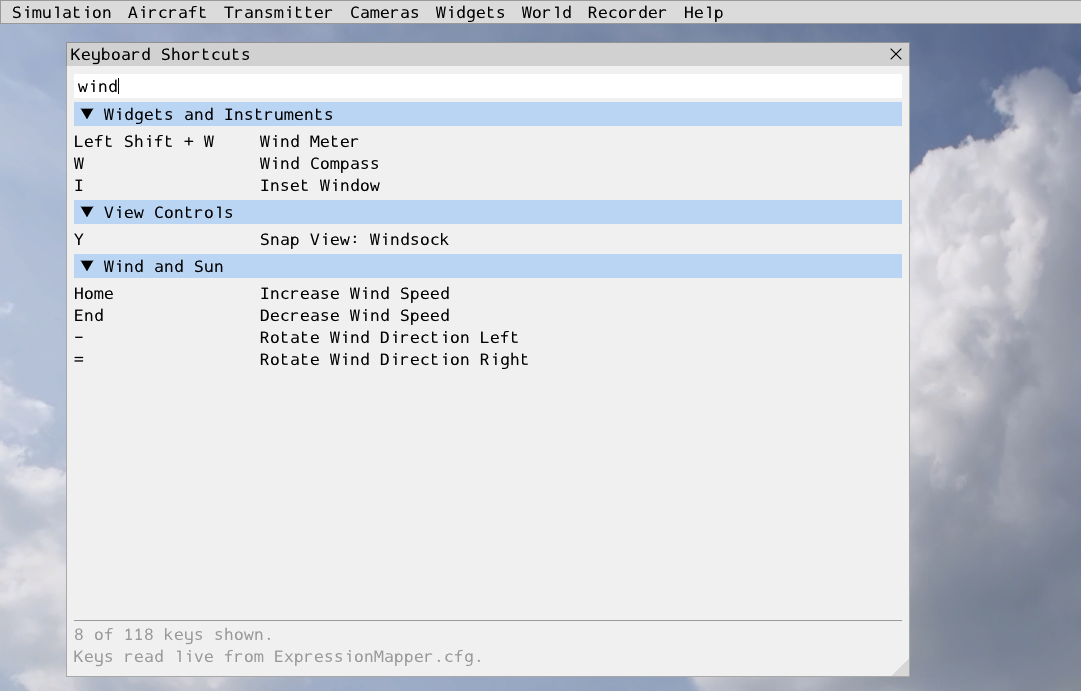
The same window filtered by typing “wind”.
This window replaces the painted key-map pages that the / key
cycled through in earlier versions. The printed keymap is still
available. See Key Commands.
8.3. The Left Shift Layer
The instruments and panels new in SeligSIM 2026 open with
Left Shift plus a letter. Here is the whole layer in one place:
|
Opens |
|---|---|
|
Axes panel |
|
Flight Modes & Channels panel |
|
Deflections panel |
|
Flight Modes & Rates/Expos panel |
|
Flight Modes & Mixes panel |
|
Sky Grid |
|
Height & Distance readout |
|
Flight Manual panel |
|
Hand Launch Settings window |
|
Timer |
|
Orientation Map (cycles heading-up, north-up, off) |
|
Wireframe Airplane |
|
Servos panel |
|
Flight Modes & Offsets panel |
|
English / Metric units (session only) |
|
Variometer |
|
Wind Meter |
|
Mix Bench |
|
Attitude Indicator |
|
Mix Map |
|
Airplane Specifications panel |
|
Screencast Keys |
|
Sun higher / lower |
|
Sun left / right |
|
Restore original home positions |
|
Set home to current position |
Turn on Screencast Keys ( Left Shift + / ) and every key you
press appears on screen with the action it ran. Leave it on for a
flight and the sim teaches you its own keyboard.